
- Assessing Your Current Network Layout
- Step One: Measuring Your Baseline Speeds
- Step Two: Setting Up a Wired Connection
- Step Three: Optimising Wireless If Cables Aren't Practical
- Step Four: Testing Real-World Performance
- Evaluating Ethernet vs Wi-Fi for IPTV Results
- Common Troubleshooting Quick Fixes
- Frequently Asked Questions
You stare at the screen while the buffering wheel spins endlessly during a crucial football match. Frustration sets in quickly. Every streaming enthusiast faces this dilemma sooner or later, making the eternal debate of Ethernet vs Wi-Fi for IPTV a priority for anyone cutting the cord across British households. Wi-Fi offers unmatched convenience, but cables deliver raw reliability. Let us walk through a practical, step-by-step method to test, configure, and choose the ultimate network setup for your streaming hardware.
Assessing Your Current Network Layout
Before buying cables or changing router settings, you need to map out your physical space. Distance kills Wi-Fi signals. Thick brick walls found in older UK properties obstruct wireless frequencies terribly. Meanwhile, a wired setup bypasses physical obstacles completely.
Look at your living room. Is your broadband router sitting right next to your TV box? If yes, plugging in a cable takes seconds. If your router lives in the hallway or a home office upstairs, running a wire gets trickier. Take stock of your layout before making any permanent changes.
Step One: Measuring Your Baseline Speeds
Never guess your network performance. You must measure it. Grab your phone or laptop, stand near your streaming box, and run a reliable speed test.
Live TV streams demand consistent download speeds and low latency. Note your ping and jitter numbers. High jitter causes micro-stutters even if your raw download speed looks impressive on paper. Run tests at peak evening hours around 8 PM. That is when neighbourhood congestion hits maximum levels across Virgin Media and Openreach networks.
Step Two: Setting Up a Wired Connection
Nothing beats a physical cable for raw stability. If you want zero dropped frames, wired is the clear winner in the Ethernet vs Wi-Fi for IPTV battle. Let us set one up properly.
- Purchase a Cat6 Ethernet cable of adequate length to reach from your router to your streaming device.
- Power down your streaming box completely.
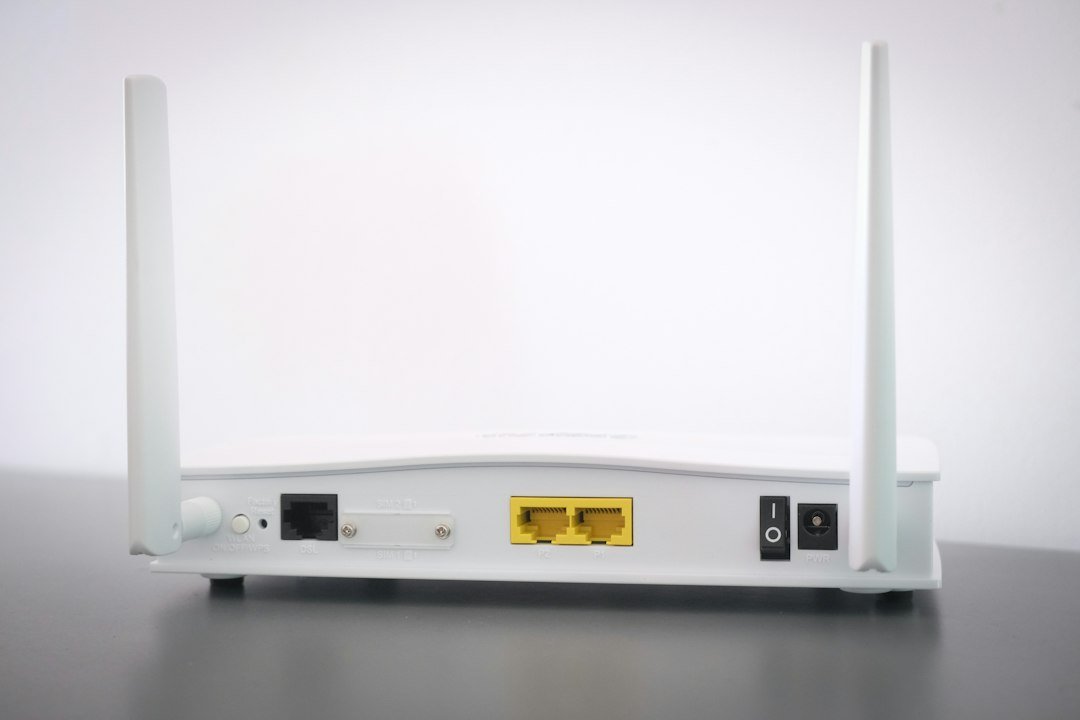
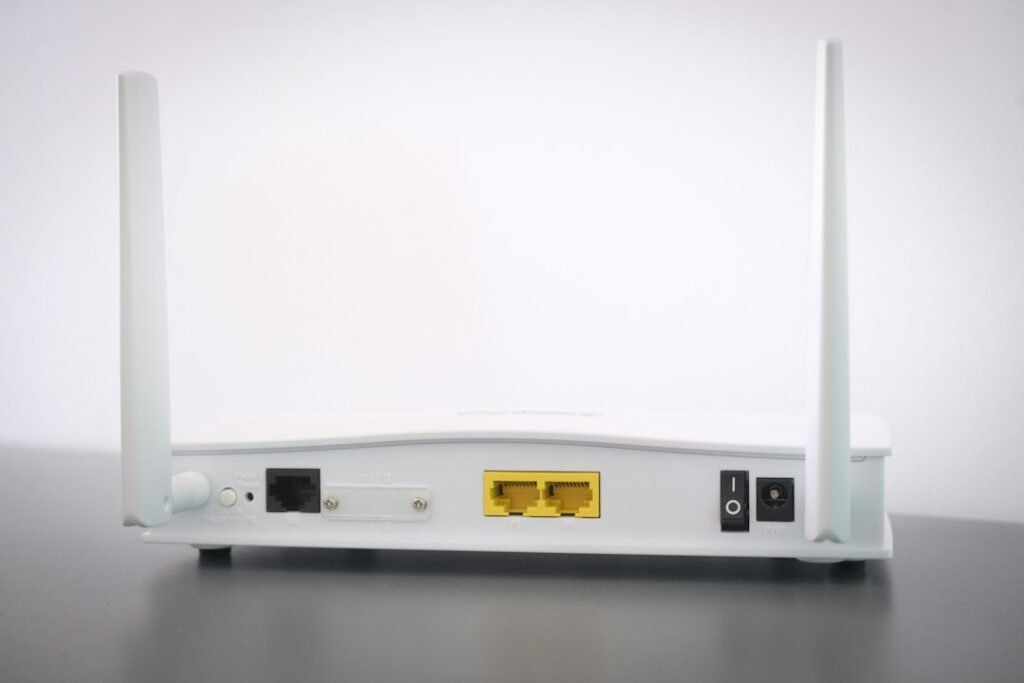
- Plug one end of the cable into a spare LAN port on your broadband router.
- Connect the other end into the back of your streaming player or smart box.
- Power the device back up and check the network settings to confirm it recognises the wired link automatically.
If your router has no free ports, buy an inexpensive unmanaged Gigabit switch. This little box turns one port into five, solving port shortages instantly.
Step Three: Optimising Wireless If Cables Aren’t Practical
Running wires across skirting boards or under carpets isn’t always possible. Landlords hate it. Spouses veto it. If you must stick to wireless, you need to configure your airspace correctly.
Log into your router admin panel. Separate your 2.4GHz and 5GHz Wi-Fi bands. The 2.4GHz band carries signals further, but it suffers from severe interference from microwave ovens, Bluetooth gadgets, and neighbours’ routers. Connect your streaming hardware exclusively to the 5GHz band. It offers much higher throughput, provided your router sits within a reasonable line of sight.
If your router is too far away, consider investing in a dedicated mesh Wi-Fi system. These units create a seamless blanket of coverage across multiple nodes, beating traditional wireless extenders hands down.
Step Four: Testing Real-World Performance
Now comes the truth test. Fire up your favourite app on your streaming device. If you are exploring options, check out our guide on top streaming apps for smooth playback to ensure your software isn’t the bottleneck.
Watch a live HD broadcast for ten minutes. Switch to a demanding 4K stream if your provider supports it. Look for any sudden quality drops or audio sync issues. If wired, your stream should remain rock steady. If wireless, note if interference causes any sudden pixelation during peak hours.
Evaluating Ethernet vs Wi-Fi for IPTV Results
Let us break down the core differences in a quick comparison table so you can see how both options stack up side by side.
| Feature | Ethernet (Wired) | Wi-Fi (Wireless) |
|---|---|---|
| Stability | Flawless, immune to interference | Prone to drops and interference |
| Latency | Ultra-low (usually under 5ms) | Higher, fluctuates with distance |
| Setup Effort | Requires physical cable runs | Instant connection |
| Speed Consistency | Maxes out your broadband package | Degrades through walls and floors |
Most dedicated enthusiasts choose wired setups whenever possible. Modern streaming boxes make excellent companions to a solid copper link. If you are upgrading your hardware soon, read our recommendations on choosing the right streaming box in the UK to find models with reliable Gigabit ports built right in.
Common Troubleshooting Quick Fixes
Sometimes your connection misbehaves despite choosing the right medium. Try these quick fixes before panicking:
- Restart both your router and your streaming box to clear temporary memory leaks.
- Change your DNS servers to a public provider like Cloudflare or Google if channel loading times drag.
- Check for background downloads running on other household devices hogging your bandwidth.
Getting your home network right transforms your viewing experience entirely. Pick the method that fits your living space, test your speeds during peak evening hours, and enjoy uninterrupted entertainment.
Frequently Asked Questions
Does Ethernet improve picture quality?
No. A cable doesn’t magically upgrade a low-resolution broadcast. It simply guarantees that your internet pipeline stays wide open, preventing bitrate drops that force your player to downgrade the resolution automatically.
Will powerline adapters work as well as direct Ethernet?
Powerline adapters send internet signals through your home electrical wiring. They work decently in modern properties, but older UK ring mains with mixed wiring can introduce interference and lower speeds. Direct cable runs remain superior.
Can Wi-Fi 6 handle 4K streaming easily?
Yes. Wi-Fi 6 and Wi-Fi 6E offer incredible wireless bandwidth. If your router and streaming box both support these newer standards, wireless performance comes very close to matching a physical cable, provided walls don’t block the signal.
For more information, IPTV UK.
Related reading
- IPTV Subscription for Multiple Devices Explained
- How Long Should You Test an IPTV Service Before Buying?