
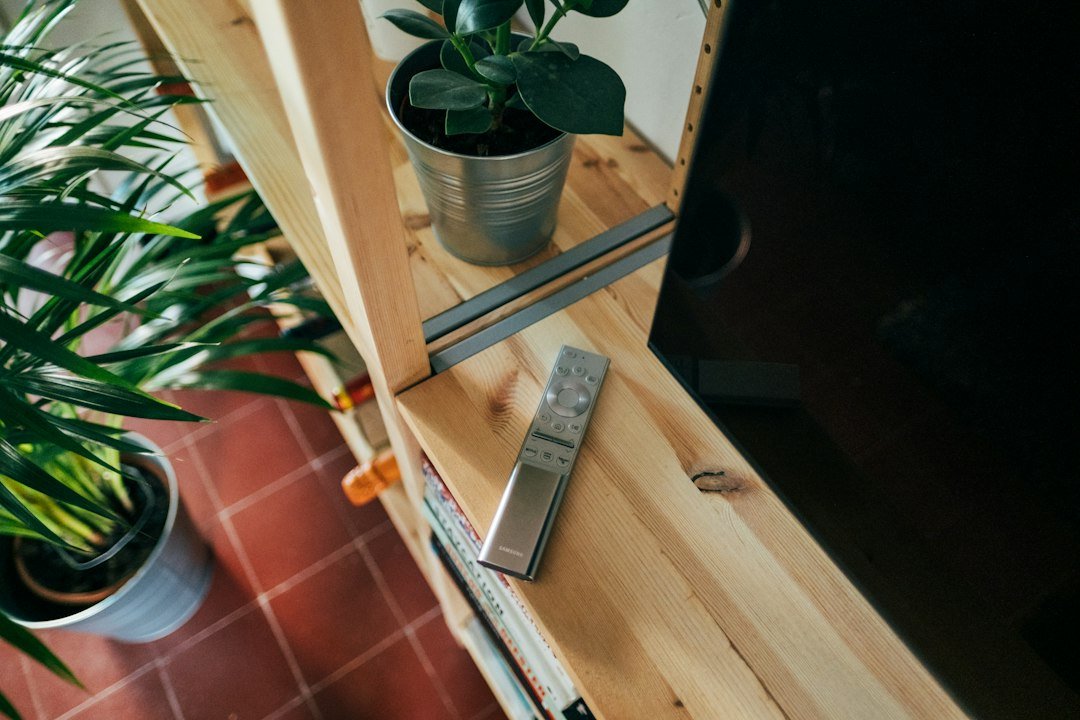
Google TV powers millions of living rooms across the UK right now. That means thousands of households are trying to figure out how to use IPTV on Google TV without pulling their hair out over complicated menus. Most people buy a Chromecast with Google TV or a Sony Bravia set expecting a plug-and-play experience, only to hit a wall when they realise live channels don’t just appear on the home screen. You need the right app, a reliable playlist, and a minute or two to configure everything properly.
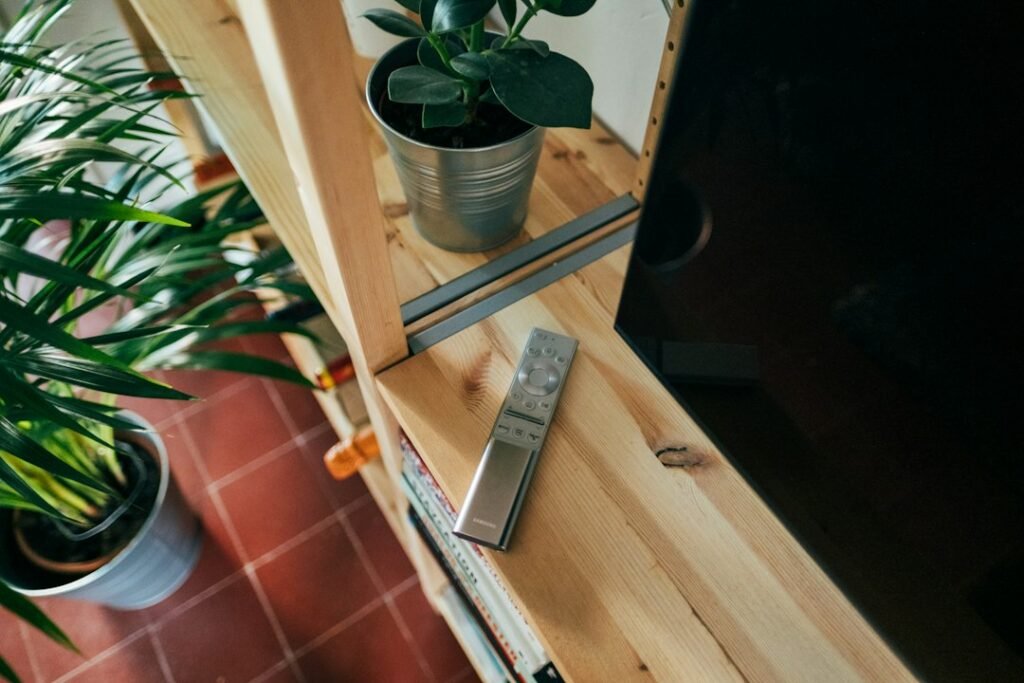
Getting Started With Your Google TV Device
Before touching any media players, grab your remote and check your storage space. Google TV interfaces can get sluggish if you load them up with too many background utilities. Make sure your operating system is fully updated through the settings menu. If your connection drops constantly, you might want to look into how to optimise router settings for smart TV streaming in the UK before loading large m3u playlists.
Open the built-in Google Play Store directly from your apps row. This is where you’ll find your player. Don’t bother side-loading sketchy APK files from random forums when the official store has perfectly stable options ready to download.
Choosing the Best App for Your Setup
Finding a reliable player changes everything. You have a few solid contenders sitting right in the app store:
- Tivimate: Widely regarded as the gold standard for layout and electronic programme guide integration, though it requires a small upgrade fee for advanced features.
- IPTV Smarters Pro: A free-to-download staple that handles login details easily through Xtream Codes API.
- XCIPTV Player: Another robust choice with a familiar cable-box layout that older family members usually pick up instantly.
Each app handles your subscription details differently. Smarters asks for your portal URL, username, and password. Tivimate usually prefers an M3U playlist link or an Xtream Codes login. Keep your subscription details typed out in a notes app on your phone if you hate using the on-screen keyboard with a standard remote.
Step-by-Step Installation for Google TV
Type your chosen app name into the search bar at the top of the Google Play Store. Hit install and wait ten seconds for the system to drop the icon onto your main dashboard. Launch the app immediately once the download finishes.
Select the option to add a new playlist or user. Input your provider credentials carefully. One missed character in a long server URL will break the connection instantly. Once authenticated, give the application permission to cache your channel guide data. This stops the screen from hanging every time you open the live TV tab.
Common Pitfalls and How to Fix Them
Channels buffering every five minutes usually point to Wi-Fi interference rather than a bad subscription. Google TV devices plugged directly into a congested 2.4GHz wireless band struggle with high-bitrate live feeds. Switch your broadband router over to the 5GHz channel if your telly sits close to the hub. If your guide refuses to load, clear the app cache in your Android settings and restart the hardware completely.
Many viewers also wonder about trying different platforms before committing to a main setup, especially when testing various device capabilities; you can read more about what devices can you use for an IPTV free trial to see how hardware affects your test runs. Take your time configuring your remote shortcuts within Tivimate or Smarters so you can jump straight to your favourite BBC or Sky sports channels with a single button press.
For more information, IPTV UK.
Related reading
- IPTV Subscription for Firestick: Setup and Compatibility Guide
- Demonstrate first-hand expertise wherever possible through practical setup advice, troubleshooting steps, device-specific instructions, limitations, compatibility information and useful observations.