


- Why Ditch Wi-Fi for a Wired Connection?
- What You Need Before Starting
- Step-by-Step Fire TV Ethernet Adapter Setup
- Step 1: Unplug the Power
- Step 2: Connect the Adapter to the Fire TV
- Step 3: Attach the Power Lead
- Step 4: Plug in the Ethernet Cable
- Checking Your Wired Connection in Settings
- Testing Your Network Speed and Stability
- Troubleshooting Common Connection Issues
Why Ditch Wi-Fi for a Wired Connection?
Streaming 4K films or live football on a Amazon Fire TV Stick usually works fine over Wi-Fi. Until it doesn’t. Standard home routers from BT, Sky, or Virgin Media often struggle when wall insulation, microwave ovens, or Bluetooth gadgets interfere with wireless signals. Drops in speed trigger annoying buffering wheels right at crucial moments.
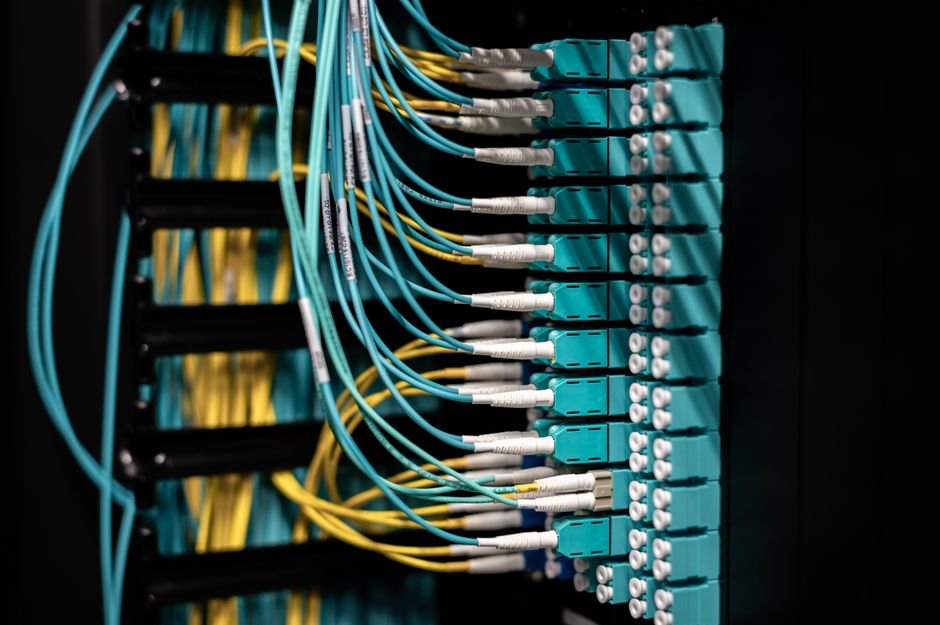
Plugging directly into your router fixes this instantly. A wired connection gives you full bandwidth, lower latency, and zero wireless congestion. If your network connection keeps dropping out, taking time for a proper smart TV Wi-Fi connection fix or moving to ethernet is the single best upgrade you can make for your home streaming setup.
What You Need Before Starting
You cannot plug a standard ethernet cable straight into a Fire Stick. The stick only has a single micro-USB port used for power. To get a physical cable connected, you need a cheap accessory called an official Ethernet Adapter for Fire TV, or a compatible third-party micro-USB OTG ethernet hub.
Gather these items before you start plugging things in:
- Your Amazon Fire TV Stick plugged into your television’s HDMI port.
- An official Amazon Fire TV Ethernet Adapter (or a compatible micro-USB OTG network adapter).
- A standard Cat5e or Cat6 ethernet cable long enough to reach your router or network socket.
- The original USB power lead and plug supplied with your Fire TV.
Avoid powering your Fire TV stick directly from a spare USB slot on your television. TV ports rarely output enough electrical power to run both the streaming stick and the network adapter simultaneously, which causes random restarts.
Step-by-Step Fire TV Ethernet Adapter Setup
Step 1: Unplug the Power
Start by pulling the power cable out of your Fire TV Stick. Leave the device plugged into the HDMI socket on the back or side of your television.
Step 2: Connect the Adapter to the Fire TV
Take the hardwired micro-USB connector attached to the ethernet adapter. Plug this directly into the micro-USB power port on the side of your Fire TV Stick.
Step 3: Attach the Power Lead
Take the original USB power lead that came with your streaming device. Plug the micro-USB end of that power lead into the dedicated power port on the ethernet adapter itself. Plug the standard USB end into the original wall plug adapter, then turn the mains socket on.
Step 4: Plug in the Ethernet Cable
Push one end of your ethernet cable into an open LAN port on your home broadband router. Push the other end into the RJ45 port on your new ethernet adapter until it clicks securely into place.
Checking Your Wired Connection in Settings
Once everything is powered on, turn on your TV and switch to the correct HDMI input. Your Fire TV should boot up to the main home screen automatically. The software switches over to wired networking without demanding any extra steps, but verifying it takes just a minute.
Grab your Fire TV remote and head into the settings menu:
- Select Settings (the gear icon on the far right).
- Go to Network.
- Look for the notification at the bottom right of the screen. It should clearly say Wired (Connected).
If you see your old Wi-Fi network name listed as active instead, select that Wi-Fi network, press the button with three horizontal lines on your remote, and choose Forget. Forcing the Fire Stick to forget your wireless network prevents it from switching back to Wi-Fi if someone accidentally knocks the ethernet plug.
Testing Your Network Speed and Stability
Now that your Fire TV ethernet adapter setup is complete, you should test the connection to ensure you are getting stable speeds. The official Amazon adapter supports network transfer speeds up to 100 Mbps. While that might sound lower than full gigabit internet packages, 100 Mbps is vastly more than enough for reliable streaming. Most 4K streams only demand around 25 Mbps.
You can run a quick speed test directly on your television using built-in tools. Download a free network speed testing app from the Amazon Appstore, or open the Silk Web Browser on your Fire TV and visit a speed test site. A steady 30 Mbps to 50 Mbps result over a wired link will provide a far smoother experience than a fluctuating 150 Mbps Wi-Fi connection.
Troubleshooting Common Connection Issues
If your screen still shows an offline status after following these steps, check these basic physical connections first:
- Check the lights: Look closely at the small green and amber lights near the socket on the adapter. If they are dark, no data is travelling down the wire. Try swapping to a different network port on your router.
- Restart the device: Go to Settings > My Fire TV > Restart, or simply unplug the mains power adapter from the wall for 10 seconds and plug it back in.
- Check for power starvation: If your stick keeps looping on the logo screen, ensure you are using the official wall plug rather than a TV USB socket.
Taking ten minutes to set up a physical network cable completely eliminates signal drops and keeps your high-definition streams running cleanly every day.
For more information, IPTV UK.
Related reading
- Broadband Speed for Streaming UK: How Much Bandwidth Do You Really Need?
- How to Stream Live Sports in the UK: Frequently Asked Questions Answered