


Few things ruin a Friday night faster than a live broadcast freezing right as someone takes a shot on goal. If you want to fix IPTV lag on Smart TV setups in the UK, the issue usually boils down to local home network congestion, software settings, or aggressive broadband throttling by your internet provider. Smart TVs carry decent displays, but their built-in processors often struggle with heavy streaming data.
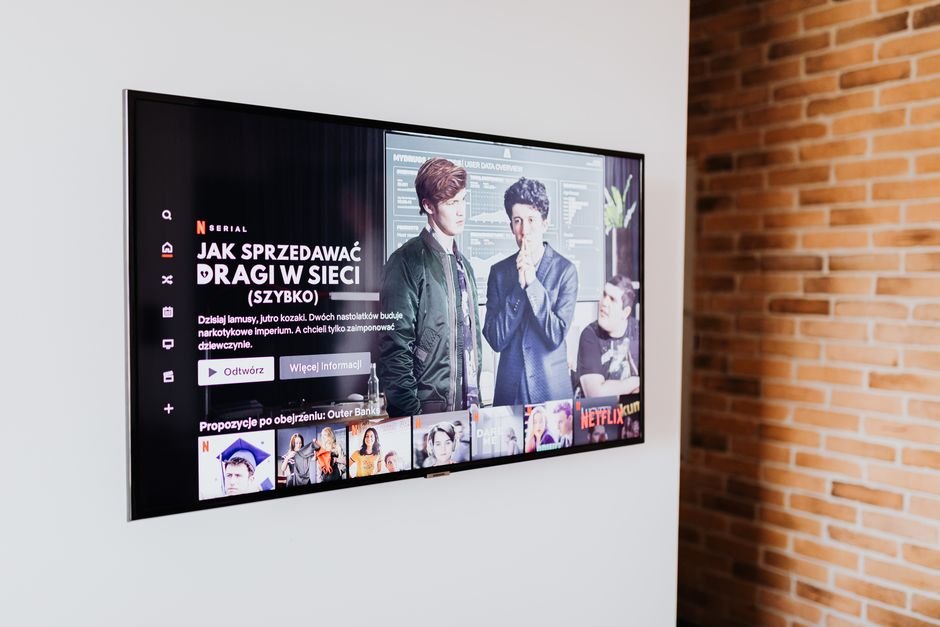
Why does my Smart TV lag when streaming live TV?
Smart TVs prioritize screen quality over system memory. Unlike dedicated streaming devices, a budget or mid-range Smart TV often ships with minimal RAM and low-powered chipsets. When you open a live feed, the TV has to decode incoming high-bitrate video while running background system processes simultaneously.
Memory leaks are common on Samsung Tizen and LG webOS platforms. If you leave your television on for days without a full reboot, cached data builds up and chokes performance. Live video feeds require continuous bandwidth. A minor drop in processing power instantly triggers stuttering or spinning wheels.
How do I stop my Smart TV from buffering on Wi-Fi?
Wi-Fi signals suffer heavily from physical interference in British homes. Thick Victorian brick walls, foil-backed insulation, and nearby household electronics rapidly degrade wireless signals. Switching your television to a wired connection using a cat6 Ethernet cable remains the most effective fix.
If running a cable across your living room isn’t realistic, switch your TV from the 2.4GHz Wi-Fi band to 5GHz on your router settings. The 2.4GHz frequency reaches further, but it gets crowded by microwave ovens, baby monitors, and your neighbours’ networks. The 5GHz band delivers faster throughput over shorter distances, which stops packet loss.
You can also check our guide on how to optimise router settings for Smart TV streaming in the UK for step-by-step wireless tweaks.
Could my UK broadband provider be slowing down my connection?
Yes. Major UK Internet Service Providers (ISPs) like BT, Sky, Virgin Media, and EE use automated traffic management. During peak viewing hours—typically between 7 PM and 11 PM, or during weekend Premier League fixtures—ISPs actively manage heavy video streams to prevent neighborhood gridlock.
You can identify ISP throttling by running a quick speed test on your TV’s browser during a live broadcast. If your general package speed reads 70Mbps but your streaming playback keeps stuttering, your ISP might be restricting that specific traffic type. Changing your router’s default DNS settings to public options like Google DNS (8.8.8.8) or Cloudflare (1.1.1.1) often bypasses basic ISP routing delays.
Which app settings help reduce live video delay?
Media player apps feature configurable internal settings that affect how smoothly channels play. Modifying these options directly inside your app settings yields immediate improvements:
- Increase buffer size: Raise your app’s pre-buffer cache from 0.5 seconds to 2 or 3 seconds. This creates a safety cushion against minor connection dips.
- Change stream format: Switch the stream format from TS (Transport Stream) to HLS (HTTP Live Streaming) inside your player’s playback menu. HLS handles changing network speeds much better.
- Enable hardware decoding: Ensure your app utilizes HW (Hardware) decoding rather than SW (Software) decoding to offload processing to your TV’s graphics hardware.
If your application constantly crashes alongside buffering, you might be facing update errors. See our article on how to handle IPTV not updating issues to clear broken installations.
What physical steps can I take right now to clear lag?
Start by performing a hard reset of your equipment. Unplug both your Smart TV and your broadband router from the mains power socket. Wait at least 60 seconds before plugging the router back in, allowing its power lights to settle completely before switching your television back on. This simple step clears cold caches and establishes a fresh connection path.
Next, disconnect unnecessary Wi-Fi devices around the house. Mobile phones, tablets, smart speakers, and laptops constantly download background software updates. Temporarily disconnecting idle devices gives your Smart TV priority access to your home’s bandwidth.
Finally, close background applications on your television. Smart TVs rarely close apps completely when you switch inputs; they keep them suspended in system memory. Use your TV’s settings menu to force-stop idle apps and free up vital system memory for your live video streams.
For more information, IPTV UK.
Related reading
- 7 Practical Smart TV Buffering Fixes for UK Viewers
- Freeview Play vs Freesat: Which Free UK TV Service Wins?