


You are watching a crucial penalty shootout on your new setup. Suddenly, your phone buzzes with a WhatsApp notification from a mate down the road celebrating the winning goal. Your screen shows the player still walking up to the ball. Broadcast delay on streaming devices can spoil big sporting moments instantly. If you suffer from severe Sky Glass lag, you are certainly not alone across the UK.
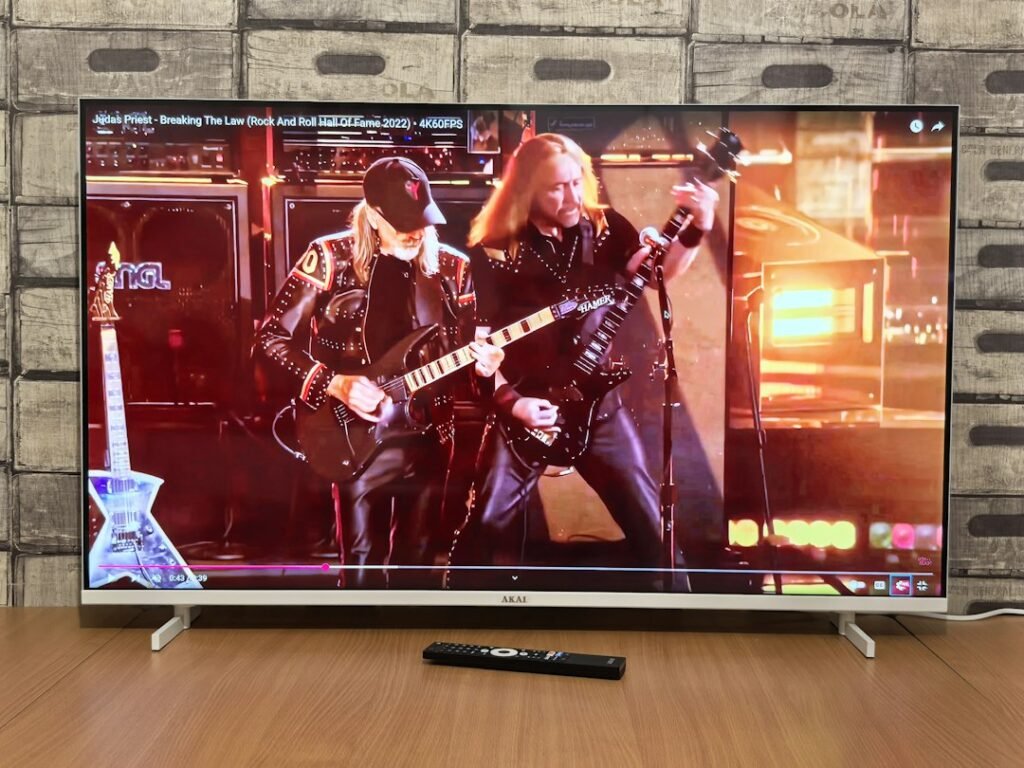
Unlike traditional satellite dishes that pull signals straight from the sky, internet pucks and connected televisions rely entirely on data packets sent over home broadband. That delivery pipeline introduces a built-in delay. While satellite TV usually runs about 5 seconds behind real time, internet-based live broadcasts often lag by 20 to 45 seconds. Thankfully, you can tweak a few specific network settings to shrink that gap significantly.
Why Connected TVs Suffer From Live Sports Latency
To fix the delay, you need to understand why it happens. Satellite signals travel at light speed straight to your dish. The decoder processes that signal almost instantly. Internet TV works very differently. The broadcaster encodes the live feed into small digital chunks, sends those chunks across the public internet, and your display buffers them before playing.
Buffering is intentional. It prevents stuttering if your home internet drops speed for a second. However, heavy buffer buffers add precious seconds of lag. When thousands of households across the UK stream the same match simultaneously, content delivery networks slow down even further.
Understanding how modern broadband connections support high bandwidth streaming helps pinpoint where bottlenecks happen inside your home setup.
Ditch Wi-Fi and Use an Ethernet Cable
Wi-Fi is convenient, but it is terrible for low-latency live video. Radio waves suffer from interference caused by microwave ovens, thick brick walls, and your neighbours’ wireless routers. Every time a Wi-Fi packet drops, your device requests a resend. That micro-pause forces the software to build a larger buffer zone, dragging your live feed further behind real time.
Plugging an Ethernet cable directly from your router into the back of your television or puck is the absolute best upgrade you can make. A physical cable eliminates signal drops entirely. You do not need expensive cables either. A standard Cat6 Ethernet cable costing under ten pounds will instantly stabilize your connection.
If your router sits in a completely different room, consider using powerline adapters. These handy devices send internet data through your home’s existing electrical wiring, giving you a wired connection without running long cords through the hallway.
Disable Network Energy Saving Modes
Modern smart televisions feature aggressive power-saving settings designed to meet energy regulations. Unfortunately, these features frequently throttle network performance. When energy saver mode is active, the television’s internal Wi-Fi chip or processor powers down into a low-state mode during playback. That leads to higher jitter and longer buffering cycles, which directly causes persistent Sky Glass lag during live football matches.
Head into your device settings menu, locate the energy options, and switch off default power management for network interfaces. Ensure your device maintains a high-performance network state continuously while powered on.
Optimise Your Router for Live Video Streaming
Your broadband router handles dozens of connected gadgets at once. Mobile phones, smart speakers, laptops, and tablets all compete for bandwidth while you watch the match. Standard home routers distribute internet speed evenly, which harms video feeds that require steady priority access.
Log into your router’s administration panel using a web browser on your phone or laptop. Look for a setting called Quality of Service (QoS). QoS lets you set traffic priority for specific devices. Assign highest priority to your main television or streaming media player. When bandwidth demand spikes across the household, your router will always feed data to your match first.
Key Settings to Check in Your Router:
- Enable Quality of Service (QoS): Set your main screen as the top priority device.
- Separate 2.4GHz and 5GHz Wi-Fi bands: If you must use wireless, connect exclusively to the faster 5GHz frequency.
- Change DNS Servers: Switch your default ISP domain servers to public alternatives like Google DNS (8.8.8.8) or Cloudflare (1.1.1.1) to speed up initial stream connections.
Keep Your Device Software Updated
Broadcasters regularly update their core operating systems and streaming applications to improve compression algorithms and lower delay latency. If your screen runs outdated system software, you miss out on backend stability patches.
System updates usually download automatically overnight, but interrupted internet connections can stop updates from installing properly. Check your system settings manually once a month to verify that you are running the latest software release. A fresh system restart once a week also clears cached memory bugs that accumulate over time and cause unnecessary playback lag.
For more information, IPTV UK.
Related reading
- How to Fix Firestick Buffering for Smooth UK Streaming
- Why the UK 3pm Football Blackout Exists and How Streaming Is Testing Its Limits