


- Why Is IPTV Not Working on Wi-Fi?
- 1. Local Wireless Interference
- 2. Broadband Speed and Peak Hour Drops
- 3. Router Quality and Bufferbloat
- 4. Why Smart TV Apps Might Be Part of the Problem
- 5. Background Downloads and Network Hogging
- Troubleshooting Steps When IPTV Not Working on Wi-Fi
- Final Verdict on Wireless vs Wired Streaming
Why Is IPTV Not Working on Wi-Fi?
Your screen freezes right when the weekend football match reaches the penalty box. Buffering circles spin endlessly. If you have ever experienced IPTV not working on Wi-Fi, you know the frustration. Live streaming demands a steady, robust data connection. Wireless networks drop packets easily. Walls, microwaves, and distance weaken signals fast. Let us look at why your setup fails and how to fix it.
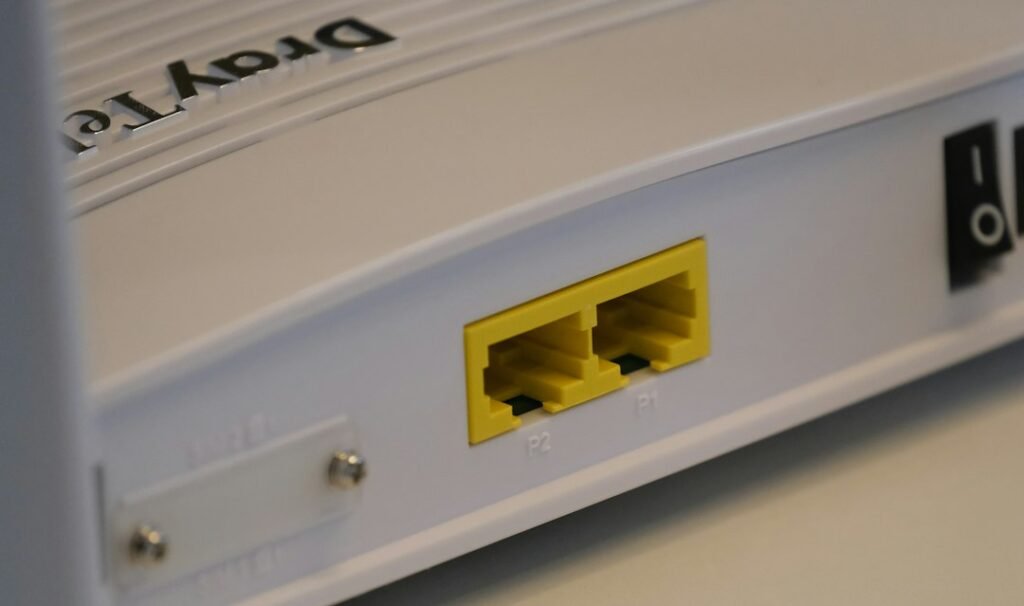
1. Local Wireless Interference
Concrete walls block Wi-Fi signals. Your neighbor using the same wireless channel causes heavy airwave congestion. Routers hidden inside TV cabinets suffer from thermal throttling. Move your router out into the open. Switch your streaming device to the 5GHz band if your router supports dual-band frequencies. The 2.4GHz band carries signals further, but it handles high-bandwidth video streams poorly. Most modern flats and houses deal with massive wireless clutter. Clear the path between your router and your streaming box.
2. Broadband Speed and Peak Hour Drops
UK internet service providers experience heavy traffic surges between 7 PM and 10 PM. Fibre connections hold up better, but older copper-line broadband struggles during peak hours. High-definition streams require at least 10 Mbps for stable playback. 4K streams need 25 Mbps or more. Run a speed test directly from your streaming device. If your wired speeds look fine while wireless speeds plummet, your Wi-Fi is the clear bottleneck.
3. Router Quality and Bufferbloat
The free router supplied by your internet provider often handles basic web browsing fine. Streaming live television puts a different kind of strain on hardware. Cheap processors inside older routers fail when managing multiple connected gadgets. Bufferbloat occurs when queues inside the router become overloaded. Data packets lag behind. Restarting your router clears its active memory and fixes temporary routing glitches.
4. Why Smart TV Apps Might Be Part of the Problem
Sometimes the issue is not your wireless signal at all. Built-in television operating systems often lack strong network adapters. Operating systems on older television sets run out of memory quickly. If you want to understand broader performance issues, read our guide on why smart tv apps keep crashing. Upgrading to a dedicated streaming stick often solves both app crashes and poor Wi-Fi reception.
5. Background Downloads and Network Hogging
Other devices on your home network consume bandwidth silently. Someone else might be downloading large game updates in another room. Smart home cameras constantly upload footage to cloud servers. Pause heavy background downloads before launching your streaming app. QoS (Quality of Service) settings inside your router admin panel let you prioritize media streaming traffic over regular web browsing.
Troubleshooting Steps When IPTV Not Working on Wi-Fi
Fixing wireless streaming issues requires a methodical approach. Follow these steps to isolate the fault:
- Disconnect other wireless gadgets to test speed.
- Unplug both your router and streaming box for sixty seconds, then plug them back in.
- Forget the wireless network on your device and reconnect by typing the password again.
- Test an ethernet cable connection temporarily to see if the buffering stops completely.
Final Verdict on Wireless vs Wired Streaming
Wireless convenience comes with reliability trade-offs. Live television has no pause buffer for dropouts. If your setup keeps failing, switching to a wired ethernet connection remains the absolute best solution. Wi-Fi works for casual browsing, but live broadcasting demands stability.
For more information, IPTV UK.