


- Why BBC iPlayer Keeps Freezing and Closing Down
- Step 1: Perform a Full System Cold Boot
- Step 2: Clear App Cache and Stored App Data
- How to Clear Cache on Samsung Smart TVs (Tizen OS)
- How to Clear Cache on LG Smart TVs (webOS)
- How to Clear Cache on Fire TV, Android TV, and Google TV
- Step 3: Check Your UK Broadband Signal and Network Bandwidth
- Step 4: Disable UHD and Beta Features in iPlayer Settings
- Step 5: Reinstall the App or Force a TV System Update
- Step 6: Address DNS and VPN Interference
- Alternative Solutions: External Streaming Sticks
You sit down to catch up on EastEnders or watch a live match on BBC iPlayer. Two minutes in, the video freezes. The spinning wheel appears. Suddenly, your screen turns black and kicks you back to the home menu. If you are dealing with BBC iPlayer crashing on Smart TV screens across your house, you are not alone. Thousands of UK viewers face this exact issue every single week.
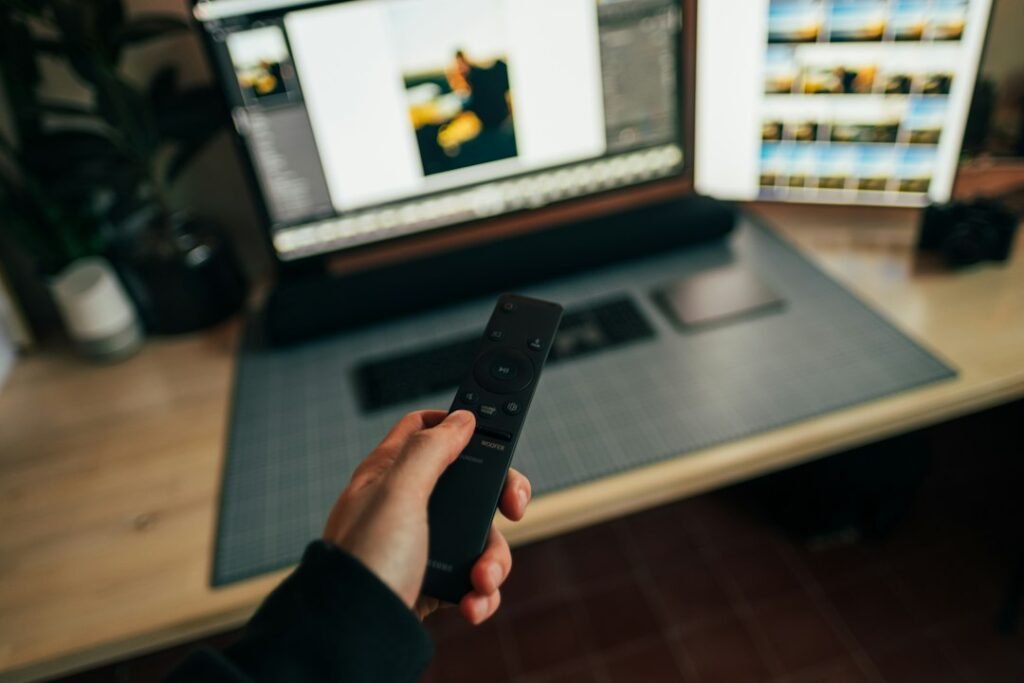
App crashes happen for practical reasons. Modern smart TVs are essentially lower-powered computers running complex media applications. When memory fills up or software updates fall out of sync, the app simply closes down. Fortunately, you can fix most of these glitches in a few minutes without buying a new telly.
Why BBC iPlayer Keeps Freezing and Closing Down
BBC iPlayer relies heavily on digital rights management (DRM) checks and secure content delivery streams. It runs differently than lighter apps like YouTube. Understanding what causes the crash helps you pick the right fix immediately.
Here are the primary culprits behind sudden crashes:
- Corrupted cache files: Temporary data stored by your TV can get corrupted over time.
- Memory starvation: Background applications hog the small RAM built into cheap or aging smart TVs.
- Outdated firmware: Your television OS might be running an older version that struggles with the latest iPlayer update.
- Intermittent network drops: A brief dip in Wi-Fi signal often causes the app to crash rather than buffer.
- UHD and HDR settings overload: 4K stream playback can push older TV processors beyond their limits.
Step 1: Perform a Full System Cold Boot
Putting your TV into standby mode with your remote control does not actually switch it off. It just puts the system to sleep, keeping temporary bugged files active in memory. You need to clear the RAM completely.
To perform a cold boot, turn off the TV while it is running. Unplug the power cable directly from the wall socket. Leave it unplugged for at least 60 full seconds. While it is unplugged, press and hold the physical power button on the frame of the TV for 10 seconds. This action drains residual electricity from the internal capacitors.
Plug the power cable back in and switch the telly on. Launch iPlayer again. In nearly half of all cases, this single reset stops BBC iPlayer crashing on Smart TV models from LG, Samsung, and Sony.
Step 2: Clear App Cache and Stored App Data
Every time you watch a show, iPlayer saves small bits of temporary data to speed up menu loading. When this cache becomes cluttered, memory leaks happen. Clearing it gives the application a fresh start without deleting your TV setup.
How to Clear Cache on Samsung Smart TVs (Tizen OS)
Press the Home button on your smart remote. Go to Settings, then scroll down to Support. Select Device Care and run a quick scan. Once complete, select Manage Storage. Find BBC iPlayer in the app list, select View Details, and click Clear Cache and Clear Data.
How to Clear Cache on LG Smart TVs (webOS)
LG webOS handles memory management automatically, but you can force a clearout. Turn off the TV, then hold the home button and back button together on your Magic Remote until the screen flashes. Alternatively, open the TV web browser, head to settings, and clear browsing data. WebOS shares cache storage across several native web-based apps, including iPlayer.
How to Clear Cache on Fire TV, Android TV, and Google TV
Navigate to Settings and choose Apps. Select See All Apps and scroll down to BBC iPlayer. Click on it, then select Force Stop. After that, click Clear Cache. Avoid selecting ‘Clear Data’ unless you are happy to sign back into your BBC account using your mobile phone or web browser.
Step 3: Check Your UK Broadband Signal and Network Bandwidth
A weak connection is a direct trigger for crashes. If your internet speed drops suddenly during a live stream, iPlayer attempts to renegotiate the video quality. If the signal drops out completely for a fraction of a second, the player engine gives up and closes.
The BBC recommends minimum broadband speeds for smooth viewing:
- Standard Definition (SD): 1.5 Mbps
- High Definition (HD): 5 Mbps
- 4K Ultra HD (UHD / HDR): 24 Mbps
Run a quick speed test on your phone while standing next to your TV. If your Wi-Fi signal drops below two bars, your router position might be hurting performance. Thick brick walls in older UK homes regularly block 5GHz Wi-Fi channels.
If Wi-Fi proves unreliable in your living room, consider running a physical network cable. You can learn how to hardwire your Smart TV for 4K streaming without chasing walls to secure a completely solid connection.
Step 4: Disable UHD and Beta Features in iPlayer Settings
The BBC frequently tests advanced picture technologies like Hybrid Log-Gamma (HLG) HDR and Ultra HD streaming on major live events. While picture quality looks incredible, older processors in mid-range televisions struggle to render these demanding formats. This hardware stress leads directly to the BBC iPlayer app freezing or crashing back to your TV main menu.
You can turn off high-demanding video formats directly inside the application interface:
- Open the BBC iPlayer application on your television.
- Navigate to the left-hand menu and click on Settings (the gear icon).
- Scroll down to Video Quality or UHD/HDR settings.
- Change your default video quality setting from UHD or Best Quality down to HD.
- Scroll to BBC iPlayer Beta features if visible, and turn them off.
Testing HD playback isolate whether processor overload is causing your TV to kick you out of the app. If the stream runs reliably in HD, your hardware simply lacks the processing power needed for 4K streaming.
Step 5: Reinstall the App or Force a TV System Update
If basic troubleshooting does not stop BBC iPlayer crashing on Smart TV displays, corrupted installation files might be baked into your storage. Reinstalling forces your TV to download a clean, updated build from the app store.
To delete the application, open your TV app manager. Highlight BBC iPlayer, open options, and select uninstall. On some televisions like Samsung models built before 2020 or certain LG webOS sets, native UK catch-up apps are pre-installed by default and cannot be uninstalled. In that situation, choose the Reinstall option instead.
Next, check for system software updates. Navigate to your telly main settings menu, select About TV or System Update, and select Check for Updates. Manufacturers like Hisense, TCL, Philips, and Panasonic frequently push system patches that fix app compatibility issues with UK broadcasters.
Step 6: Address DNS and VPN Interference
BBC iPlayer checks your IP location constantly to comply with UK TV licence rules and rights restrictions. If you use a custom DNS on your home router or run active privacy software, iPlayer might flag your connection as outside the UK or mark it as an unauthorized proxy.
When iPlayer detects geo-blocking tools or mismatched DNS requests during playback, it halts video playback immediately. Sometimes this trigger causes the entire software container to crash.
Ensure your Smart TV network settings are configured correctly:
- Set your TV IP Settings to Automatic (DHCP).
- Set your TV DNS settings to Automatic or use standard ISP defaults.
- If you run third-party security software, temporarily disable it to verify if network filtering is causing crashes.
Network interruptions and aggressive server checks remain common culprits across all streaming services. If you face similar performance drops across other platforms, read our analysis on why video streams keep buffering and how to fix them.
Alternative Solutions: External Streaming Sticks
Smart TV manufacturers generally stop updating TV operating systems after three to four years. If your television set was bought before 2020, its internal onboard hardware will eventually struggle with modern streaming apps like iPlayer, ITVX, and Channel 4.
Instead of replacing a fully working television display, spending £30 to £50 on an external streaming device completely solves software crashes. Devices like the Amazon Fire TV Stick 4K, Roku Streaming Stick, or Chromecast with Google TV feature dedicated video processors, optimized software support, and frequent updates.
External media sticks handle video rendering on their own hardware, outputting a clean HDMI picture signal straight into your TV. This completely bypasses your TV aging internal software system, permanently ending BBC iPlayer crashing on Smart TV hardware.
For more information, IPTV UK.
Related reading
- How to Optimise Router Settings for Smart TV Streaming in the UK
- How to Record Live TV on Smart TV: A Step-by-Step UK USB Guide